
How to Use YouTube Stories in iOS Devices
YouTube has released new YouTube stories like Snapchat, Instagram, Facebook, and LinkedIn now. You might have the question, WHY? I know it sounds funny because all social media platforms already have this feature, but YouTube is working on keeping you on their platform more. Alright, let me teach how to use the stories feature on YouTube, but first, let me answer the questions that you might have.
1- Who can use YouTube stories?
YouTube stories started rolling out that feature to all YouTube creators and those creators are the ones who have over 10,000 Subscribers.
2- Can views or subscribers use that feature?
Unfortunately not, YouTube is having this feature for creators only because by using YouTube stories, everyone YouTuber or creator will be able to communicate with their subscribers without even going to their other platforms.
3- Is there a way to use YouTube stories on a computer?
No, because stories are specifically made to video yourself through your phone. As you all know it started with Snapchat and Snapchat is an app. Therefore, you can only be active by getting in touch with your views/subscribers via your iPhone, iPad or any other devices that have the YouTube app.
Now you have over 10,000 subscribers, but how can you see or find the “Stories” tap in the YouTube tab?
Let me tell you, in the top bar under the channel name; you can see there are Home, Videos, Playlists, Community, “Stories,” Channels, and About. There the tap that is called “Stories” is the YouTube stories. Not a surprise I know, but yea there you can see the stories that you posted them since day one.

If you still don’t have that stories tap and you are already above 10,000 subscribers on Youtube, no worries! YouTube is again sending that feature out to all creators above 10,000 subscribers as I said previously. However, if it has been over a week or two since it’s out, I would recommend you email them and ask them why this isn’t there in your channel yet.
How long will a single story post last on YouTube?
It is a story post and like any other social media platform that has the stories feature, but this one is live for 7 days. I think this is because YouTube loves analytics and numbers, so they just want users to keep track of that and see how many views did each story post get, so they just keep the stories longer than any social media platform. Additionally, outside of the story post, you can see a whole story view count. Let’s compare, on Instagram, you can just the views count of a single post, in Snapchat, outside of the story and seeing as a whole story, you can only see the views count of the highest view post, which is the first one. Whereas on YouTube, you can see the total views count even, they just add up. This is the exact same as YouTube videos views, you can see your total views on YouTube. This picture will maybe make more sense to you.
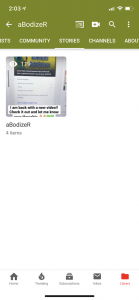
This is what I meant by a total story view. This story has 4 posts or items as they have it written, and the total story posts view is 119.
Now back to the main question.
How to use/post YouTube stories in iOS devices?
These are very few simple steps you need to follow to post a story.
- Open the YouTube app.
- Go to your YouTube channel.
- Touch or press the upload button in the iOS device that looks like a film with plus “+” in it.
- You should see a “Story” button under create, just press on that.
- Post whatever you want, either videoing yourself, taking a picture or an existing photo or video that you want to post.
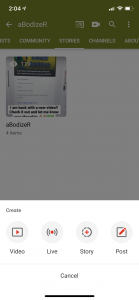
That’s pretty much that you need to do in order to upload a story post in YouTube stories in your channel.
If you are a subscriber and you want to view stories, all you need to do is to go to the “Subscriptions” tab below where you can use it between trending and index. The stories can be found in the very top, above the videos.